- Details
- Hits: 7637
How to Import a dcTrack Dashboard Widget
Widgets are the building blocks of your dashboard and are prepopulated on dashboard pages in the dcTrack. Each widget displays data on a specific metric, with some widgets having additional dropdown selectors to filter the data based on various parameters for additional granularity. In addition to preconfigured widgets, customizable widgets also are available. These include chart widgets, SQL grid widgets, and HTML widgets.
A user with the Administrator role or a globally defined Gatekeeper role can add, edit, or delete widgets within the Dashboard.
This topic covers the following:
Importing a SQL Widget
You can create SQL queries for the SQL widget yourself, obtain them from Sunbird Technical Support, or copy them from the Addons site s. The resulting widget is in a grid/tabular format for easy data exploration and analysis.
Administrators and global Gatekeepers can add or remove permissions for grid widgets. If you do not see the data you expect, you may not have permission to access that data. Contact your dcTrack system administrator for more information.
To import a SQL widget:
1. In the dcTrack, click on the Dashboard tab.
2. Click Add a Widget on the Dashboard tab menu. (Note: This can be any dashboard tab except the Enterprise Health tab. The tab that you are on is where the widget will be added.)
3. In the dropdown, select Add SQL Grid Widget option.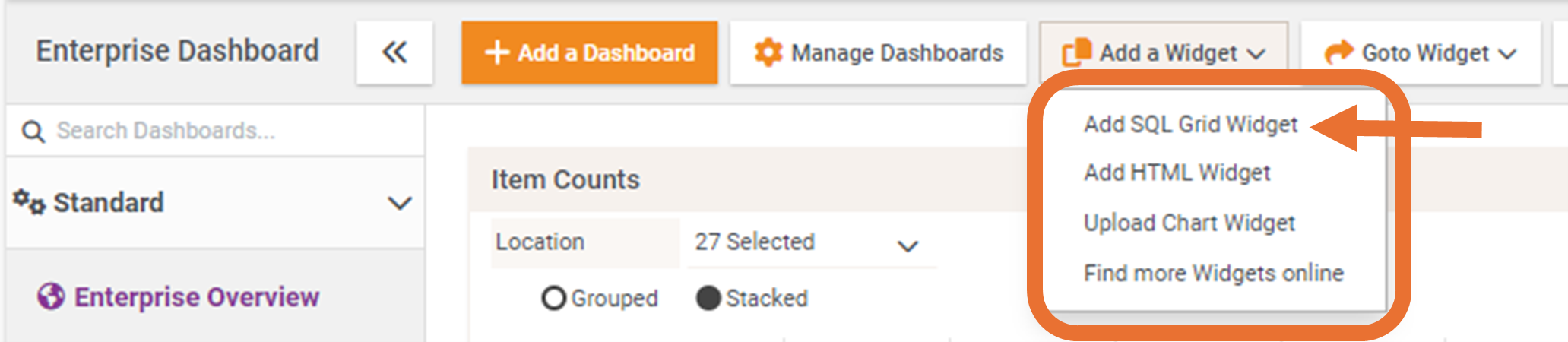
4. The Widget Settings dialog displays will popup. You are able to specify the Title, SQL Query (ODBC), Caption, and Refresh rate in seconds.
5. In the SQL Query (ODBC) field, add your SQL query information provided by Sunbird Technical Support or downloaded from the Addons site.
6. Click the Save & Close button.
7. The widget will be added to the dashboard tab you are on.
Note: The SQL widget uses dcTrack's ODBC views. For more information, including ODBC tables, see the dcTrack ODBC Public Views within the API Guide. For example, view the Sample ODBC Queries in dcTrack API Guide.
Importing a Custom Chart Widget
Custom chart widgets are available for users who want specific metrics that are not covered by the available default widgets. Any existing chart type can be used to create a custom chart widget. The resulting widget will display as a chart, similar to the default chart widgets available natively.
Custom chart widgets can be created by Sunbird Technical Support or downloaded from the Addons site here.
To import a chart widget:
1. In the dcTrack, click on the Dashboard tab.
2. Click Add a Widget on the Dashboard tab menu. (Note: This can be any dashboard except the Enterprise Health dashboard.)
3. In the dropdown, select Upload Chart Widget option. 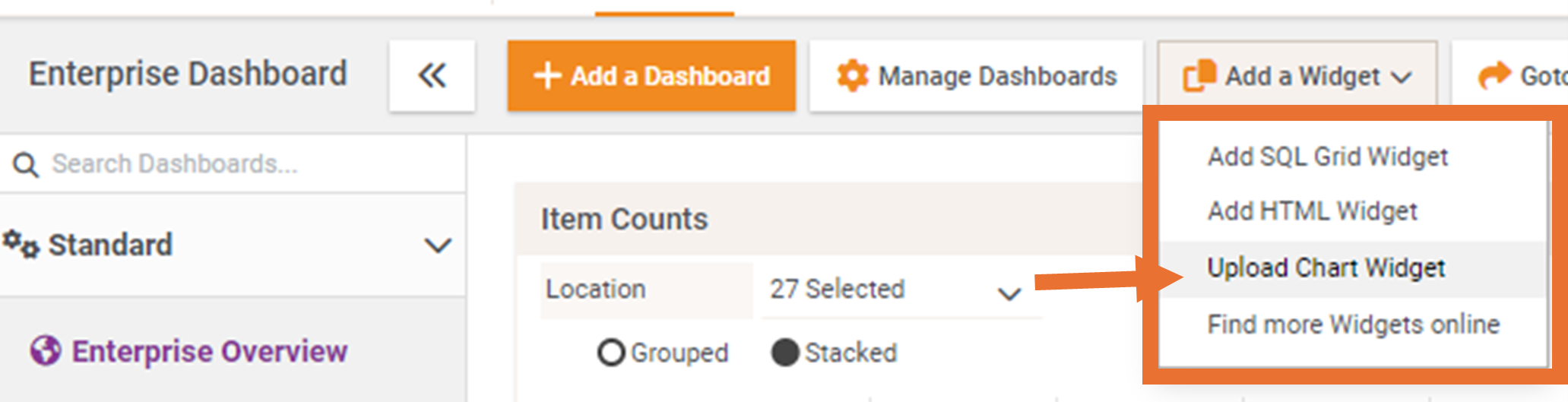
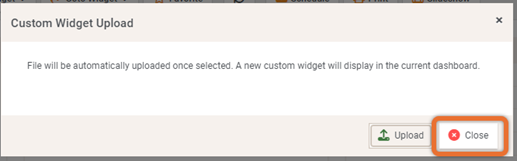
4. The Custom Widget Upload dialog will display. Locate the Chart Widget file provided by Sunbird Technical Support or downloaded from the Addons site here.
Note: Widgets are provided as .zip files. You must unzip the file. The file you should upload will have a .widget extension and be named with the widget name.
This example uses the Latest Power with Max and Ideal Capacity Per Location widget available on the Addons site here.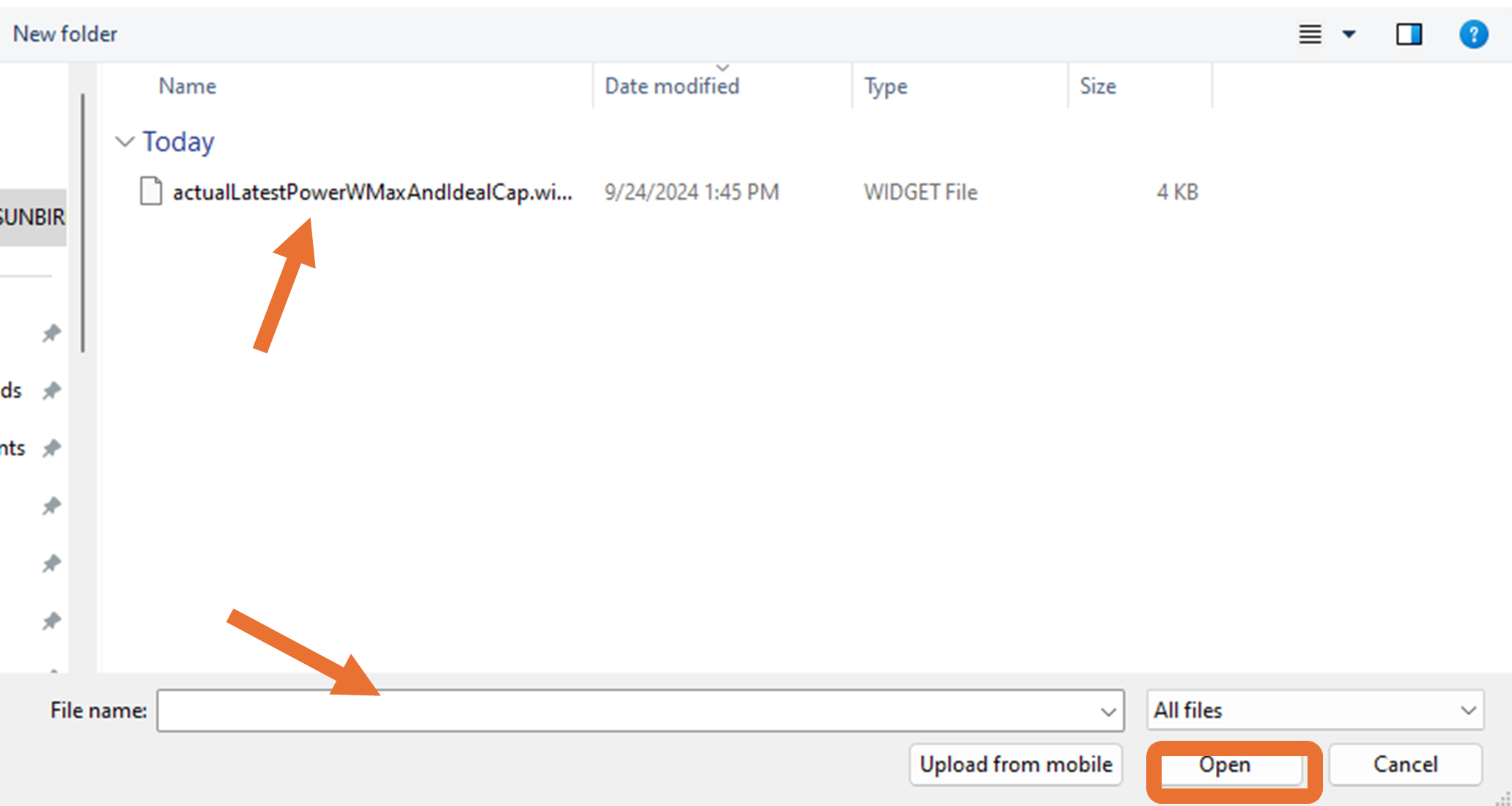
5. Then click the Upload button
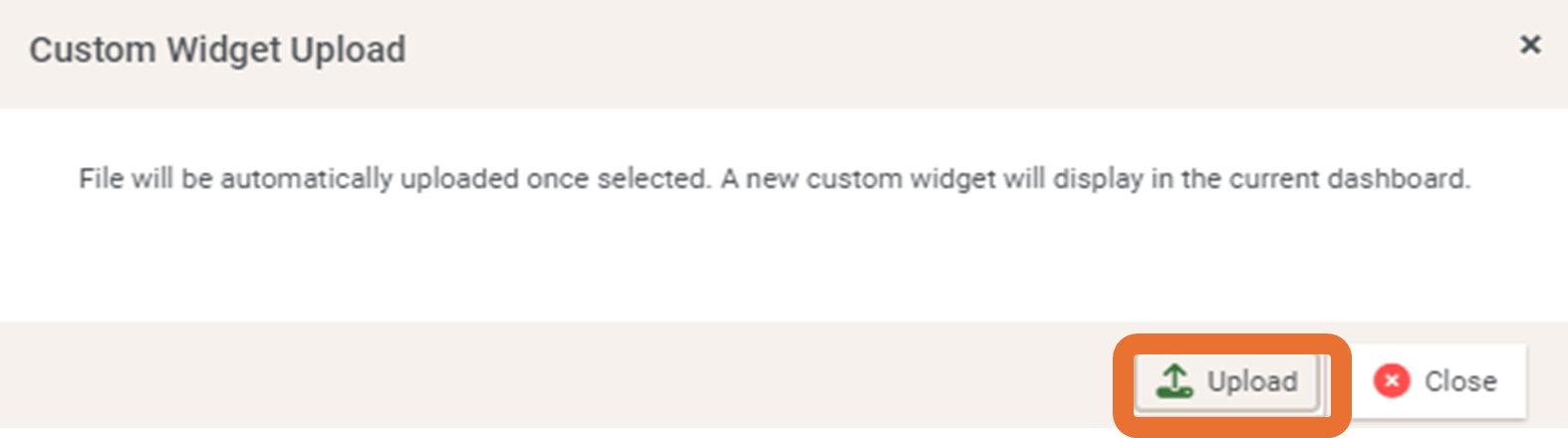
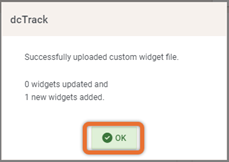
6. Click OK on dialog box.
7. Click Close.
8. The widget will be added to the dashboard tab you are on.